
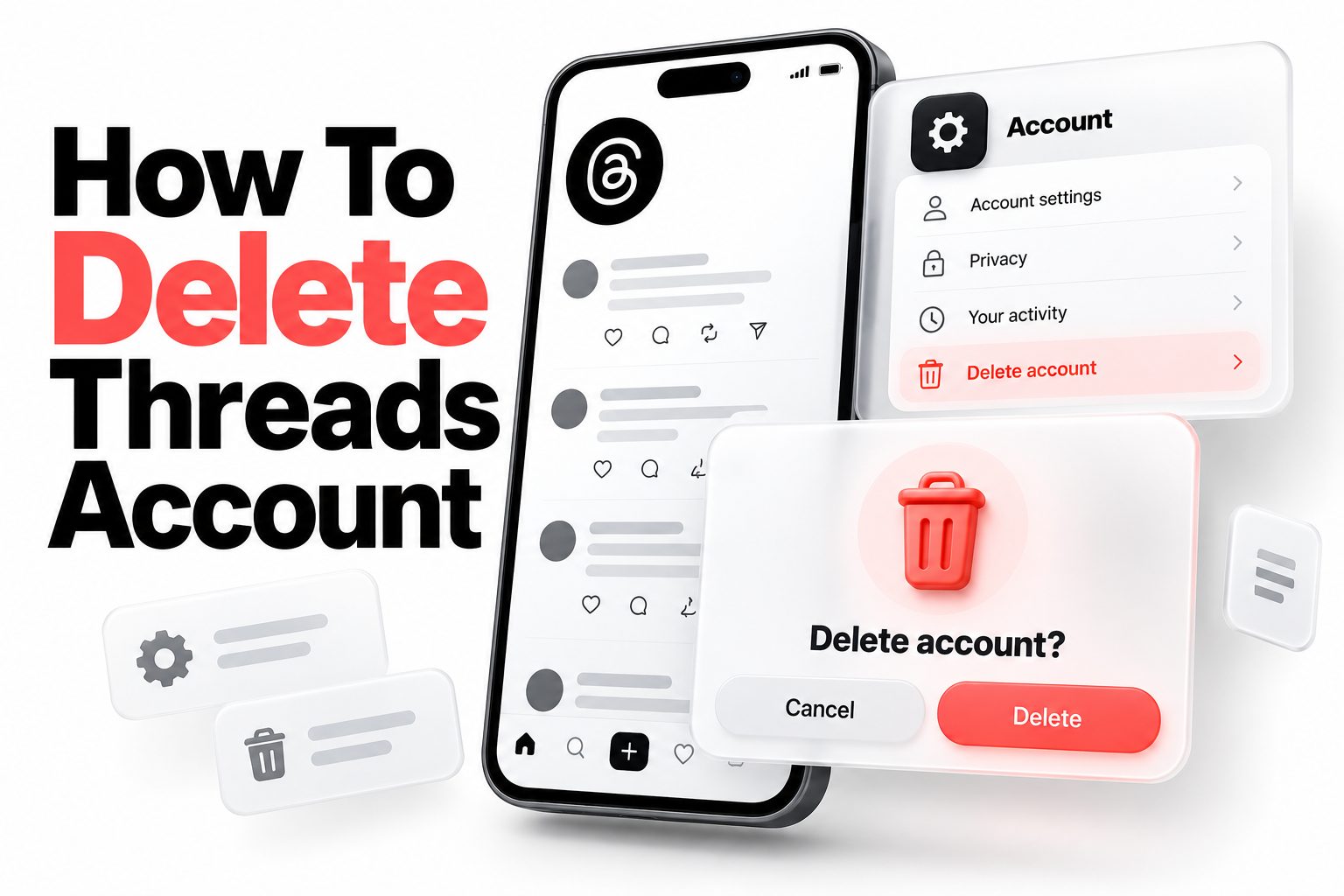
Threads can be useful for quick conversations, but not everyone wants another social profile connected to Instagram. If you no longer use the app, want to reduce your online presence, or simply prefer to remove old posts, you can delete your Threads profile without deleting Instagram. The option is located inside Threads settings, although the wording and menu path may vary slightly by app version.
This guide explains how to delete Threads account information, the difference between deleting and deactivating your profile, what happens to your posts and followers, and what to do if the deletion option is missing. You will also find practical steps for saving important information before starting, handling the 30-day cancellation period, and removing Threads from your phone after the request is submitted.
The process is separate from deleting Instagram, but the two services remain connected in some ways. Knowing that distinction can help you avoid deleting the wrong account or assuming that uninstalling the app has removed your profile.
Delete a Threads Profile From the Mobile App
The fastest way to remove your Threads presence is through the Threads mobile app. The exact labels can change as Meta updates its interface, but the deletion control is generally found under your profile settings and account options.
Before proceeding, make sure you are signed in to the correct Threads profile. This is especially important if you use more than one Instagram or Threads account on the same phone.
1. Open the Threads app on your iPhone or Android device.
2. Tap your profile picture or profile icon in the bottom-right corner.
3. Open the menu using the two-line icon in the top-right corner.
4. Select Account.
5. Choose Deactivate or delete profile.
6. Select Delete profile.
7. Follow the on-screen instructions and confirm your decision.
8. Enter your password or complete any requested security verification.
9. Confirm the final deletion request.
After submitting the request, Threads may log you out or show a message that your profile is scheduled for deletion. Do not sign back in unless you want to cancel the process. Logging in during the cancellation period may reactivate the profile or display an option to stop deletion.
If the menu labels look different, look for similar wording under Settings, Account, Meta Account, or Accounts Center. Meta sometimes tests different layouts, so two users may see slightly different navigation even when using the same app version.
Delete Threads Through Meta Accounts Center
Some users may see Threads account controls in Meta Accounts Center rather than directly under the Threads Account menu. Accounts Center is used to manage connected Meta profiles, login settings, personal details, and account ownership options.
To check for the deletion option through Accounts Center, open Instagram or Threads and look for Accounts Center in the main settings area. The following path is commonly available:
1. Open Instagram or Threads.
2. Go to your profile and open Settings.
3. Tap Accounts Center.
4. Select Personal details.
5. Open Account ownership and control.
6. Choose Deactivation or deletion.
7. Select the Threads profile you want to remove.
8. Choose Delete account or Delete profile.
9. Confirm the request and complete the security checks.
The account list may include Instagram, Facebook, and Threads profiles. Read the selected profile name carefully before confirming. Deleting an Instagram account is a different action and can affect the Threads profile connected to it.
If Threads is not listed in Accounts Center, return to the Threads app and check the Account section directly. You can also update the app, sign out and back in, or use the Threads website if the account settings are available there.
Quick account check:
- Threads deletion removes the Threads profile and its Threads activity.
- It does not normally delete your Instagram account.
- Deleting Instagram can also remove a connected Threads profile.
- Uninstalling Threads only removes the app from your device.
- Deactivation hides the profile but keeps the account available for reactivation.
Deletion and Deactivation Compared
Deleting and deactivating your Threads profile are not the same action. Deactivation is temporary and designed for people who want to take a break. Your profile and content are generally hidden from other users, but the account remains stored and can be restored when you log in again.
Deletion is intended to permanently remove the profile and its associated Threads content. Meta normally provides a limited period during which you can cancel the request. Once that period ends, recovering posts, replies, followers, or profile information may no longer be possible.
| Option | What happens | Can you return later | Best for |
|—|—|—|—|
| Deactivate profile | Hides your Threads profile and activity | Yes, by logging in again | A temporary break |
| Delete profile | Starts permanent removal of your Threads information | Only during the cancellation period | Leaving Threads permanently |
| Uninstall app | Removes the app from your phone | Yes, because the account remains active | Clearing storage or stopping notifications |
| Make profile private | Limits who can see and interact with your content | Yes | Reducing visibility without leaving |
Choose deactivation if you are uncertain. It gives you time to decide without immediately committing to permanent removal. Choose deletion when you are sure you no longer need the profile or its content.
What Happens After You Request Deletion
Threads typically gives users a cancellation window after they submit a deletion request. The request may take up to 30 days to complete, depending on the account and the current Meta process. During this period, avoid logging back in unless you intend to cancel deletion.
Once deletion is completed, your Threads profile, posts, replies, likes, and other account information should no longer be available through your profile. Some content may still appear temporarily in cached locations or in conversations where other users have quoted, reposted, or captured it.
Deletion from a platform is not the same as removing every copy of information from the internet. Other users may have screenshots, copied text, reposts, or links to your previous content. Meta may also retain some information for legal, security, fraud prevention, or backup purposes for a limited time.
Important facts to remember:
- The deletion request may not be immediate.
- Signing in can cancel or interrupt the process.
- Your Instagram account usually remains active when Threads is deleted.
- Existing screenshots and reposts are outside your direct control.
- The Threads app may remain installed unless you remove it manually.
- Deletion does not automatically erase content saved by other people.
Preparing Before You Delete Your Profile
Deleting a profile is easier when you handle important details first. If you have published posts, useful conversations, or contacts you may want later, review your account before submitting the request.
Consider saving copies of anything you need. You can take screenshots, copy text into a document, save images to your device, or use any available data download option in Meta’s account settings. A data download may take time to prepare, so request it before beginning deletion if the information matters.
Also review account connections. If you use Threads to communicate with clients, friends, or communities, tell important contacts where they can reach you afterward. Deleting the account may remove your public profile and make it difficult for people to find you.
A practical pre-deletion checklist:
- Save posts, photos, videos, or replies you want to keep.
- Record usernames or contact details you may need later.
- Check whether you manage a community or have important conversations.
- Review any links in your profile that should be moved elsewhere.
- Download account information if Meta provides that option.
- Confirm that you are deleting the correct Threads profile.
- Decide whether deactivation would be more appropriate.
You do not need to delete individual posts one by one before requesting profile deletion. Removing the profile is generally intended to handle the account and its associated content together. Still, reviewing the profile first helps prevent accidental loss.
Deleting the Threads App Afterward
Once the deletion request is submitted, you can remove Threads from your phone. Deleting the app is optional, but it prevents notifications, frees storage, and reduces the temptation to sign in during the cancellation period.
On an iPhone, press and hold the Threads app icon, select Remove App, and then choose Delete App. On Android, press and hold the app icon and select Uninstall, or open your device’s app settings and remove it from there. The exact wording depends on your phone manufacturer and operating system.
Uninstalling the app does not submit a deletion request. If you remove Threads before using the account settings, the profile will still exist online. You can reinstall the app later or use the browser version to access the deletion controls.
If you want to keep the profile but stop interruptions, changing notification settings may be enough. You can disable push notifications, restrict who can mention you, make the profile private, or simply log out without deleting anything.
Problems That Can Prevent Deletion
A missing deletion option does not always mean that your account cannot be removed. The most common causes are an outdated app, a temporary technical problem, an incorrect account, or confusion between Threads settings and Instagram settings.
First, update Threads through the App Store or Google Play. Then close and reopen the app, check your internet connection, and sign in again. If you use multiple profiles, switch to the account you actually want to delete before opening the Account menu.
If the deletion control still does not appear, try Accounts Center or the Threads website. Meta sometimes moves settings between the Threads app and Accounts Center. Searching within the settings page for terms such as deletion, deactivation, account ownership, or profile may also help.
Common fixes include:
- Update the Threads app.
- Sign out and sign back in.
- Confirm that you selected the correct profile.
- Try a different network connection.
- Check both Threads settings and Accounts Center.
- Disable a VPN temporarily if the page fails to load.
- Clear the app cache on Android.
- Restart the phone.
- Report the issue through Threads Help or the in-app problem reporting tool.
Avoid third-party websites that promise to delete your account for you. They may ask for your password or login code and could put your account at risk. Account deletion should be completed through an official Threads or Meta account setting.
Recovering a Deleted or Deactivated Profile
A deactivated Threads profile can generally be restored by signing in again. Reactivation is different from canceling a deletion request because deactivation is designed to be temporary. Your profile may become visible again after you log back in.
If your profile is scheduled for deletion, open Threads and sign in before the cancellation period ends. Look for a message or button that lets you cancel deletion. Follow the confirmation steps, then verify that your profile and posts are available.
After the deletion period has ended, recovery may not be possible. Creating a new Threads profile with the same Instagram account will not necessarily restore the original username, followers, posts, replies, or settings. Treat permanent deletion as irreversible once the cancellation window has passed.
If you are trying to return after a mistake, use the original login method. For example, if you created the profile through Instagram, sign in through the connected Instagram account rather than creating a separate login. If you encounter an error, update the app and use Meta’s official support channels.
Privacy Steps Before Leaving Threads
Deleting a Threads profile can reduce your public presence, but it is worth reviewing privacy settings before leaving. If you need time to decide, switch the profile to private, limit mentions, and remove personal information from the bio.
Check whether your profile includes a workplace, school, location, phone number, email address, or links to other accounts. Removing these details before deactivation or deletion reduces the amount of personal information visible while you complete the process.
You can also review connected Meta account settings. Avoid changing unrelated Instagram or Facebook controls unless you understand what they affect. For help with broader privacy settings, see [Internal Link: social media privacy settings].
A sensible privacy review may include:
- Remove unnecessary personal details from the bio.
- Review profile photos and public links.
- Check who can mention or reply to you.
- Review connected accounts and login methods.
- Remove saved login information from shared devices.
- Sign out of Threads on phones or browsers you no longer use.
These steps do not replace account deletion, but they can reduce exposure while the request is pending.
Alternatives to Permanently Deleting Threads
Permanent deletion is not the only way to reduce your use of Threads. Some people want to stop seeing the app without losing their profile, while others want to keep a record of past activity but remove public visibility.
Deactivation is the most direct alternative. It hides your profile temporarily and allows you to return later. A private profile is another option if you still want to follow selected accounts or participate in conversations without making your posts broadly visible.
You can also keep the account inactive. Turn off notifications, remove the app from your home screen, and avoid signing in. This leaves the profile available but minimizes its role in your daily routine.
Use these alternatives when:
- You might return to Threads later.
- You want to preserve your username or follower list.
- You need a temporary break from social media.
- You are waiting to decide whether permanent deletion is necessary.
- You want to stop notifications without removing your content.
If you are leaving because of a specific post, unwanted interaction, or privacy concern, blocking, restricting, reporting, or changing visibility settings may solve the immediate problem without deleting your entire profile.
Common Mistakes to Avoid
One of the most common mistakes is assuming that deleting the Threads app deletes the account. It does not. The app and the profile are separate. You must use the account deletion settings to submit a removal request.
Another mistake is selecting the wrong Meta profile. Since Instagram, Facebook, and Threads may appear together in Accounts Center, read each account name before confirming. A rushed tap in the wrong menu can start a different account action than intended.
People also sometimes log back in immediately after requesting deletion to check whether it worked. That can cancel the request or reactivate the profile. If you need confirmation, look for an email or in-app status message without signing in repeatedly.
Keep these do-and-don’t reminders in mind:
- Do save important content before deletion.
- Do verify the selected profile.
- Do wait through the cancellation period if you want permanent removal.
- Do use official Meta settings.
- Don’t share your password with a deletion service.
- Don’t assume Instagram has been deleted.
- Don’t expect screenshots or reposts to disappear automatically.
- Don’t log in casually after submitting the request.
How Threads Deletion Affects Instagram
Deleting Threads is designed to be separate from deleting Instagram. In most cases, your Instagram profile, posts, direct messages, followers, and login remain available after the Threads profile is removed.
The connection still matters because Threads profiles may use Instagram credentials, shared account information, or Accounts Center controls. If you delete Instagram instead, the linked Threads profile may also be affected. For that reason, use the Threads-specific deletion option when your goal is to leave Threads only.
If you want to remove both services, review the separate deletion process for Instagram and save your information before confirming. For guidance on that broader task, see [Internal Link: how to delete an Instagram account].
When checking the result, open Instagram separately and confirm that it works normally. Do not assume that an Instagram login failure means Threads deletion was successful; the two issues may be unrelated.
Conclusion
Removing a Threads profile is usually a straightforward process. Open Threads, visit your profile settings, select Account, choose Deactivate or delete profile, and then select the deletion option. If the menu is not available, check Meta Accounts Center or update the app before trying again.
The most important choice is between deactivation and permanent deletion. Deactivation hides your profile while preserving the option to return. Deletion starts a permanent removal process and may include a limited cancellation period, so avoid signing back in unless you want to stop the request.
Before you begin, save anything important, verify that you selected the correct profile, and remember that uninstalling the app alone does not remove your account. Instagram usually remains active when Threads is deleted, but deleting Instagram can affect a linked Threads profile. For anyone searching how to delete threads account, the safest approach is to use the official in-app controls and confirm the account name at every step.
Frequently Asked Questions
Can I delete Threads without deleting Instagram?
Yes. Threads has a separate profile deletion option, so you can remove your Threads presence while keeping Instagram active. Use Threads settings or Accounts Center and carefully select the Threads profile before confirming.
Does uninstalling Threads delete my account?
No. Uninstalling the app only removes it from your phone. Your profile, posts, and account remain online unless you submit a deletion request through Threads or Meta account settings.
How long does Threads deletion take?
Threads may provide a cancellation period of up to 30 days before permanent deletion is completed. Avoid logging in during that period unless you want to cancel the request and keep the profile.
Can I recover a deleted Threads profile?
You can usually cancel a pending deletion before the cancellation period ends. After permanent deletion is completed, your original posts, followers, replies, and profile information may not be recoverable.
What should I do if the delete option is missing?
Update the Threads app, sign out and back in, and check Accounts Center under account ownership and control. If the option still does not appear, use official Threads support to report the problem.